Scheduled Recurring Transfers Page is Now Updated for Online Banking
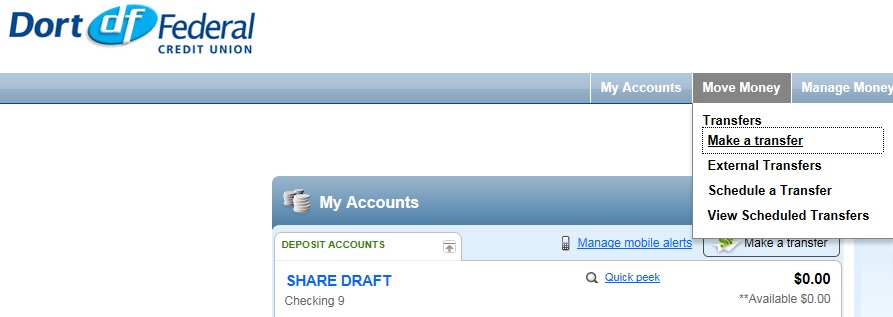
The scheduled recurring transfers aspect of online banking has been updated. Prior to the update with the scheduled recurring transfers, you were required to go to a separate page for transfers and SRTs. You can now make a transfer by hovering over the “move money” icon and clicking “make a transfer” or by clicking on the “make a transfer” button under the “my accounts” widget after logging onto your online banking account.
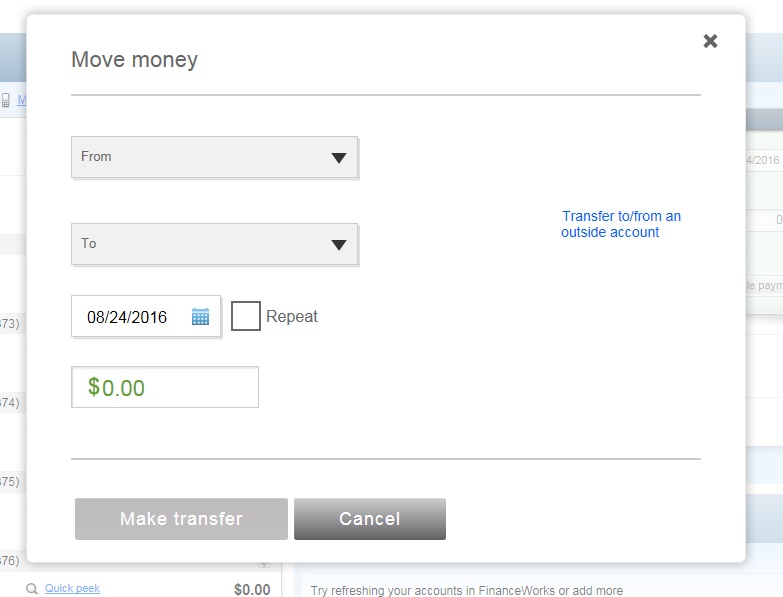
A screen then pops up that prompts you to enter information for the transfer. If you want to make scheduled recurring transfers you now can check the “repeat” box. After doing so, you will next be asked how often you would like to repeat the transfer. You can adjust the frequency of the transfer, on what date, and the duration of the transfer.
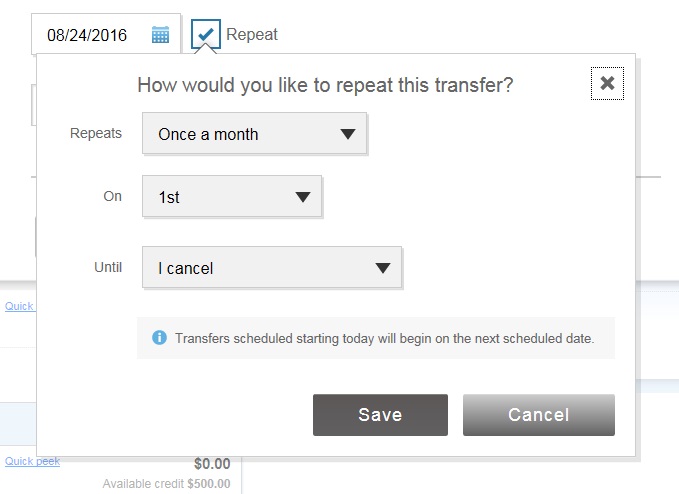
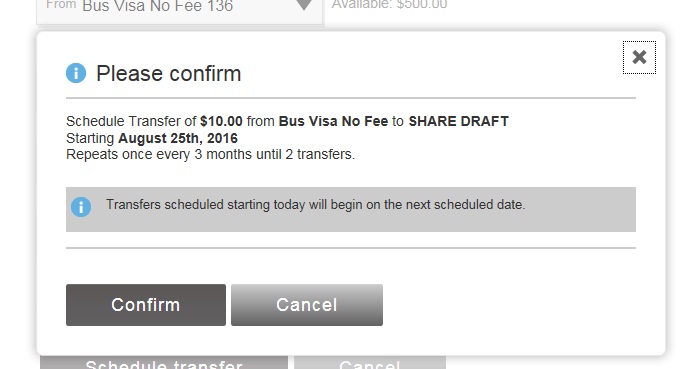
Once you add in the above information you then click on the “save” button. This will then show the transfer in a pop-up screen and you will either choose to click on the “schedule transfer” or “cancel” buttons. After clicking on the “schedule transfer” button another pop-up screen will appear asking you to confirm the transfer, you must click on “confirm” for the transfer to be processed.
You also have the option to view and edit any existing transfers at any time by hovering over the “move money” icon at the top of the screen and clicking on “view scheduled transfers”. Expired transfers will also be viewable on this same screen.
You will receive an email once the transfer is processed, and will also receive an email if a problem exists with the transfer.